Sunday, November 25, 2012

setup apt-get to use http proxty

Setting up apt-get to use a http-proxy

These are three methods of using apt-get with a http-proxy.

Temporary proxy session

This is a temporary method that you can manually use each time you want to use apt-get through a http-proxy. This method is useful if you only want to temporarily use a http-proxy.
Enter this line in the terminal prior to using apt-get (substitute your details for yourproxyaddress and proxyport).
export http_proxy=http://yourproxyaddress:proxyport


source - https://help.ubuntu.com/community/AptGet/Howto 

Friday, November 23, 2012

Ubuntu network config


Quote:
ifconfig -a
your new NIC shows up, albeit without an ip address. The trouble may well be, that on Ubuntu server, new NIC's, although automatically recognized, don't activate by default. Assuming that ifconfig shows your card, look at
Code:
/etc/network/interfaces
and see if your new card is there. If not, add something like:
Code:
auto eth1
iface eth1 inet dhcp
to use dhcp, or something like
Code:
auto eth1
iface eth1 inet static
address 192.168.1.50
netmask 255.255.255.0
network 192.168.1.0
broadcast 192.168.1.255
gateway 192.168.1.1
to use a static IP address.

When you have finished, run
Code:
/etc/init.d/networking restart
or just restart the server. That might well fix your problem. Good luck!

source - http://www.linuxquestions.org/questions/linux-server-73/does-a-new-nic-need-to-be-manually-configured-in-ubuntu-server-643580/

Configure IP address in Redhat 6

Configure on commad-line by edit configuration file (Permanently)

  1. Open Terminal.
  2. Open network configuration file. In this example, it’ll configure on interface eth0. Type
    vi /etc/sysconfig/network-scripts/ifcfg-eth0
    Open NIC's configuration file
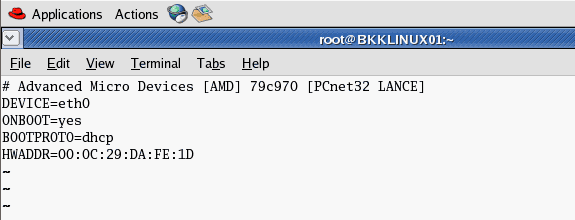
  3. The current configuration is DHCP.
    The NIC's configuration file
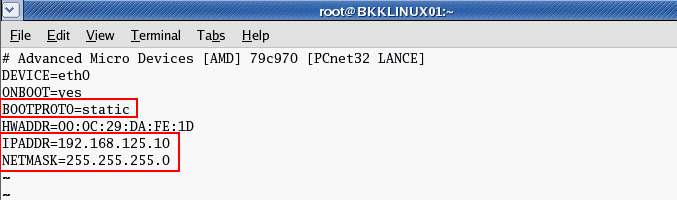
  4. Modify the file by press ‘i’ to enter insert mode. Change BOOTPROTO to static and add IP Address and Net mask as new lines if they’re not existed yet..
    BOOTPROTO=static
    IPADDR=192.168.125.10
    NETMASK=255.255.255.0
    Save the configuration file by press ESC + ‘:’ and type ‘wq’ to write and quit the editor.
    Edit the NIC's configuration file
  5. You can added these configuration to the config file. Replace [number] with your actual value.
    GATEWAY=[number]
    TYPE=Ethernet
    NETWORK=[number]
    BROADCAST=[number]
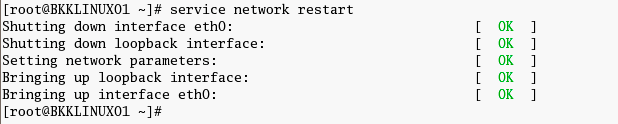
  6. Restart the network interface card. Type
    service network restart
    Restart network service
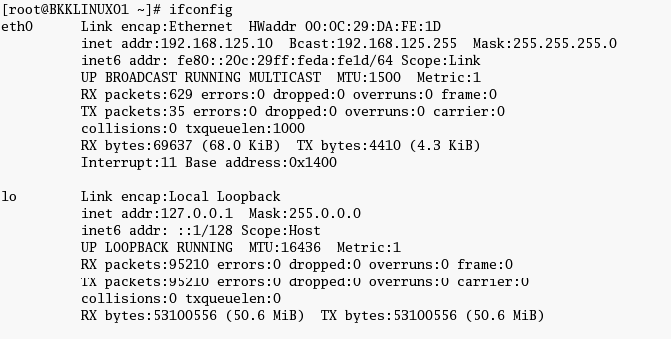
  7. Review the configuration. Type
    ifconfig
    . The IP Address has been changed permanently.
    List all NICs on the PC

source - http://www.linglom.com/2008/04/20/how-to-change-ip-address-on-linux-redhat/