Sunday, November 25, 2012

setup apt-get to use http proxty

Setting up apt-get to use a http-proxy

These are three methods of using apt-get with a http-proxy.

Temporary proxy session

This is a temporary method that you can manually use each time you want to use apt-get through a http-proxy. This method is useful if you only want to temporarily use a http-proxy.
Enter this line in the terminal prior to using apt-get (substitute your details for yourproxyaddress and proxyport).
export http_proxy=http://yourproxyaddress:proxyport


source - https://help.ubuntu.com/community/AptGet/Howto 

Friday, November 23, 2012

Ubuntu network config


Quote:
ifconfig -a
your new NIC shows up, albeit without an ip address. The trouble may well be, that on Ubuntu server, new NIC's, although automatically recognized, don't activate by default. Assuming that ifconfig shows your card, look at
Code:
/etc/network/interfaces
and see if your new card is there. If not, add something like:
Code:
auto eth1
iface eth1 inet dhcp
to use dhcp, or something like
Code:
auto eth1
iface eth1 inet static
address 192.168.1.50
netmask 255.255.255.0
network 192.168.1.0
broadcast 192.168.1.255
gateway 192.168.1.1
to use a static IP address.

When you have finished, run
Code:
/etc/init.d/networking restart
or just restart the server. That might well fix your problem. Good luck!

source - http://www.linuxquestions.org/questions/linux-server-73/does-a-new-nic-need-to-be-manually-configured-in-ubuntu-server-643580/

Configure IP address in Redhat 6

Configure on commad-line by edit configuration file (Permanently)

  1. Open Terminal.
  2. Open network configuration file. In this example, it’ll configure on interface eth0. Type
    vi /etc/sysconfig/network-scripts/ifcfg-eth0
    Open NIC's configuration file
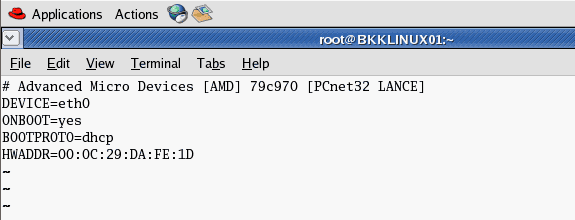
  3. The current configuration is DHCP.
    The NIC's configuration file
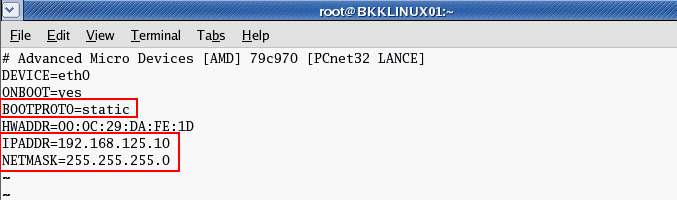
  4. Modify the file by press ‘i’ to enter insert mode. Change BOOTPROTO to static and add IP Address and Net mask as new lines if they’re not existed yet..
    BOOTPROTO=static
    IPADDR=192.168.125.10
    NETMASK=255.255.255.0
    Save the configuration file by press ESC + ‘:’ and type ‘wq’ to write and quit the editor.
    Edit the NIC's configuration file
  5. You can added these configuration to the config file. Replace [number] with your actual value.
    GATEWAY=[number]
    TYPE=Ethernet
    NETWORK=[number]
    BROADCAST=[number]
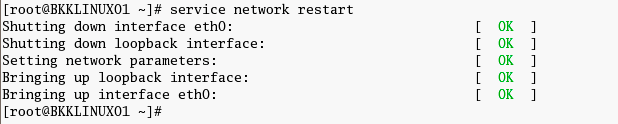
  6. Restart the network interface card. Type
    service network restart
    Restart network service
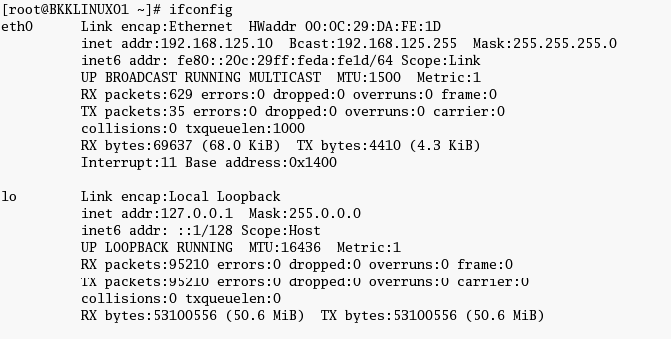
  7. Review the configuration. Type
    ifconfig
    . The IP Address has been changed permanently.
    List all NICs on the PC

source - http://www.linglom.com/2008/04/20/how-to-change-ip-address-on-linux-redhat/

Thursday, September 6, 2012

How to install VMWARE Tools into SUSE Linux

How to install VMWARE Tools into SUSE Linux

To install VMware Tools in a Linux guest operating system using Compiler:
 1.Ensure that your Linux virtual machine is powered on.
2.If you are running a GUI interface, open a command shell.
Note: Log in as a root user, or use the sudo command to complete each of these steps.

3.Click VM in the virtual machine menu, then click Guest > Install/Upgrade VMware Tools and click OK.
4.To create a mount point, run:
mkdir /mnt/cdrom

5.To mount the CDROM, run:
mount /dev/cdrom /mnt/cdrom

6.To copy the Compiler gzip tar file to a temporary local directory, run:
cp /mnt/cdrom/VMwareTools-<version>.tar.gz /tmp/
Where <version> is the VMware Tools package version.

7.To change to the tmp directory and extract the contents of the tar file into a new directory called vmware-tools-distrib, run:
 ?cd /tmp
?tar -zxvf VMwareTools-<version>.tar.gz


8.To change directory to vmware-tools-distrib and run the vmware-install.pl PERL script to install VMware Tools, run:
 ?cd vmware-tools-distrib
?./vmware-install.pl
Notes: Follow the screen prompts to install the VMware Tools. Options in square brackets are default choices and can be selected by pressing Enter.
To compile VMware Tools successfully, you need gcc Compiler and Linux Kernel sources provided by your Linux distribution. Consult your Linux distribution documentation for details on how to install these packages.
It is normal for the console screen to go blank for a short time during the installation when the display size changes.
Some warnings or errors are normal, like when a files does not exist.
Depending on the Linux distribution, your network service might restart after installation. VMware recommends that you invoke this command from the console and not remotely.


9.If you are running a GUI interface, restart your X Window session for any mouse or graphics changes to take effect.

10.To start VMware Tools running in the background during an X Window session, run:
/usr/bin/vmware-toolbox &

11.Depending on your environment you may need to unmount the CDROM. To unmount the CDROM, run:
umount /mnt/cdrom

12.Depending on your environment, you may need to manually end the VMware Tools installation. To end the VMware Tools install, click VM in the virtual machine menu, then click Guest > End VMware Tools Install.

13.To remove VMware Tools installation packages, run: ?cd
?
rm /tmp/VMwareTools-<version>.tar.gz

?
rm -rf /tmp/vmware-tools-distrib


source -- http://kb.vmware.com/selfservice/microsites/search.do?language=en_US&cmd=displayKC&externalId=1018414


Wednesday, August 1, 2012

VMWARE convert vmdk files.

If encounter error "A virtual machine fails to power on with the error: Unsupported and/or invalid disk type" ,

use this command

vmkfstools -i <HostedVirtualDisk> <ESXVirtualDisk>

sample :
vmkfstools -i oldvmwarefile.vmdk> <new-converted-vmdk-file.vmdk>


it will convert accodingly.

source - 
http://kb.vmware.com/selfservice/microsites/search.do?language=en_US&cmd=displayKC&externalId=1028943


A virtual machine fails to power on with the error: Unsupported and/or invalid disk type

Symptoms

Summary

A virtual machine fails to power on with the error: Unsupported and/or invalid disk type  

Example

Module DevicePowerOn power on failed.
Unable to create virtual SCSI device for scsi0:0, '/vmfs/volumes/datastorename/VirtualMachineHome/VirtualMachineDisk.vmdk'
Failed to open disk scsi0:0: Unsupported and/or invalid disk type 7. Did you forget to import the disk first? 

Impact

The virtual machine fails to power on.

Resolution

This issue occurs if a virtual machine that is meant for VMware Hosted products such as VMware Workstation or VMware Fusion is powered-on on a VMware ESX host.

The underlying format used to store virtual machines on VMware Hosted products differs from the format used to store virtual machines on VMware ESX hosts.

To import a virtual machine stored on a VMware Hosted product to a VMware ESX host, the virtual machine should first be converted using VMware vCenter Converter. For more information on conversion, see the VMware vCenter Converter documentation.

Alternatively, the virtual machine's virtual disk files can be imported to a format understandable by VMware ESX using the command:
 
vmkfstools -i <HostedVirtualDisk> <ESXVirtualDisk>
Connect to the ESX host using an SSH session or ILO/DRAC to use this command.

Microsoft Server 2012 - some info

Microsoft Server 2012 consist of 2 major Flavor - DataCenter Editon and Standard Editon.

Features wises, both are the same
The only different is the Virtualization rights ,rest features are the same.